
Appearance
Messages & notifications
Messages
The Messages page (sidebar) is your communication hub, split into two kinds of conversations:
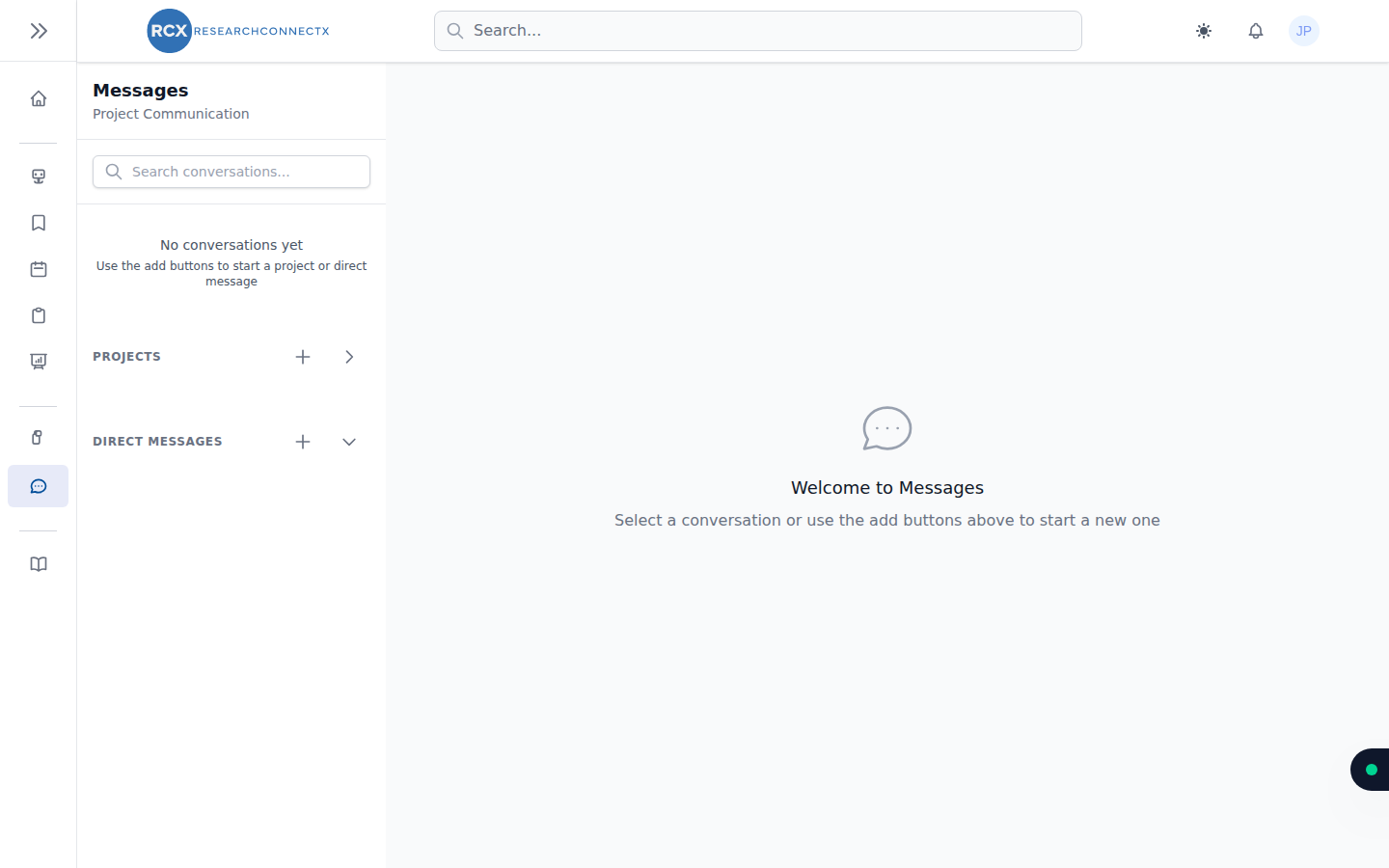
- Projects — each project you belong to has its own group conversation (the same chat as the project's Communication tab). Use the + to start a project conversation.
- Direct Messages — one-to-one chats with other researchers. Use the + to search for a user and start a conversation.
Conversations show unread badges so you can see what needs attention, and you can search conversations at the top of the list. An online indicator shows when someone is active.
TIP
Deleting a message removes it from the conversation for everyone — use with care.
Notifications
Click the bell icon (top right) for a quick view of recent notifications, or open the full Notifications page.
Notifications cover things like:
- Project invitations and join-request decisions
- New messages and project activity
- Survey and match updates
On the full page you can:
- Filter by All or Unread
- Mark individual items as read, or Mark all as read
The bell icon shows a live count of unread notifications, so you always know when something needs your attention.