
Appearance
Account security
The Account Security page (account menu → Account Security, or /account/profile) is where you manage sign-in security for your account.
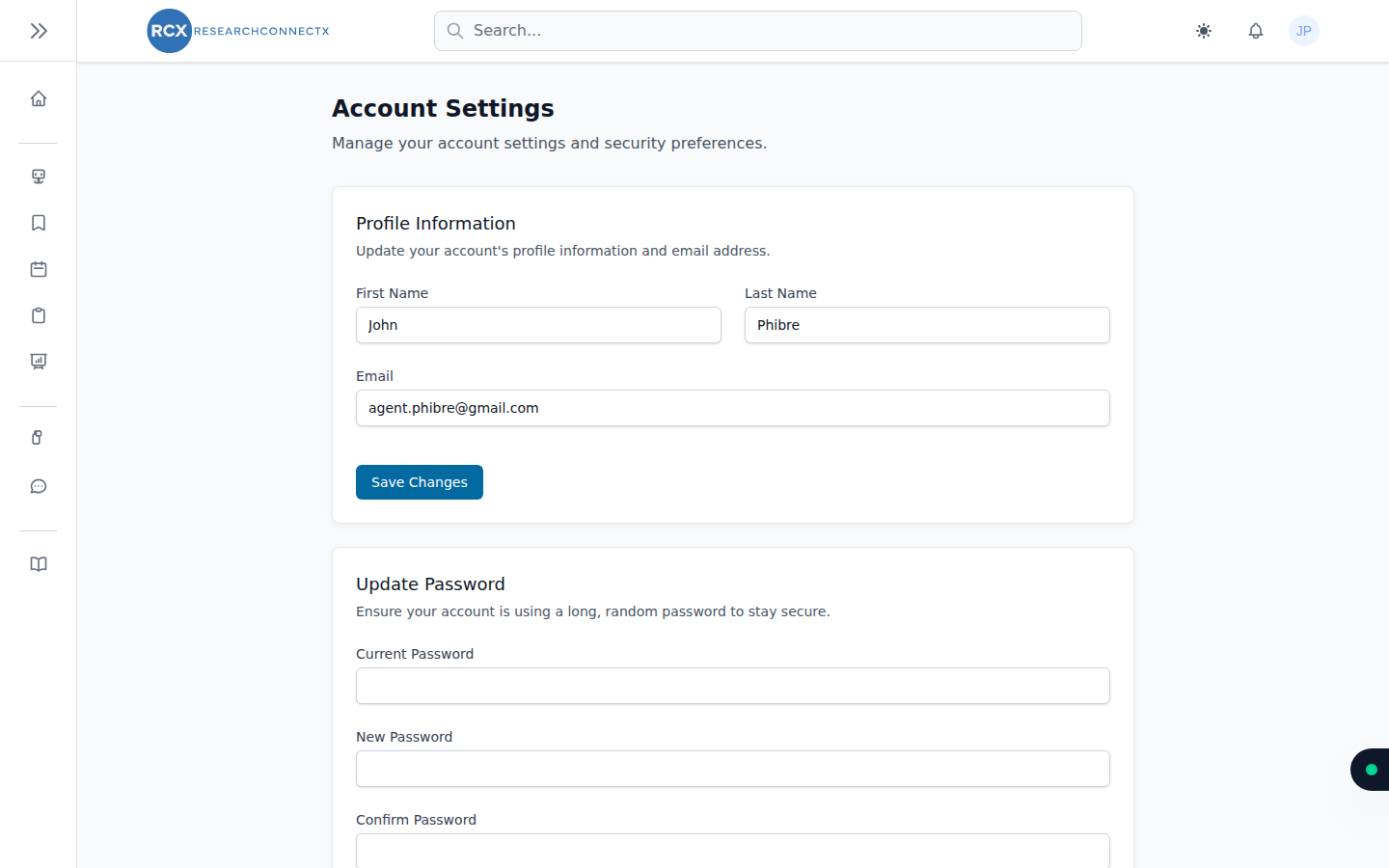
Profile information
Update your first name, last name and email address, then click Save Changes.
Changing your email
If you change your email address you'll need to verify the new one before you can keep using the platform — watch your inbox for the verification link.
Changing your password
Under Update Password, enter your current password, then your new password twice. Choose something long and unique — a password manager helps.
Signed up with SSO?
If you created your account with Google, Microsoft or ORCID, your account doesn't have a password. You can set one from Settings to enable email-and-password sign-in as a backup method — handy if you ever lose access to your SSO provider.
Two-factor authentication (2FA)
For stronger security, enable two-factor authentication:
- Under Two-Factor Authentication, click Enable.
- Scan the QR code with an authenticator app (Google Authenticator, 1Password, Authy, etc.).
- Store your recovery codes somewhere safe — they're your way back in if you lose your device.
From then on, signing in requires your password and a code from your authenticator app.
Browser sessions
Under Browser Sessions you can see where your account is currently signed in. If you spot a device you don't recognise — or you've used a shared computer — click Log Out Other Browser Sessions to sign out everywhere else.
Deleting your account
The Delete Account section permanently removes your account and personal data. This can't be undone — you'll be asked to confirm with your password first.
TIP
Leaving a project doesn't require deleting your account — see Team & membership. Deletion is only for leaving ResearchConnectX entirely.