
Appearance
Your dashboard tour
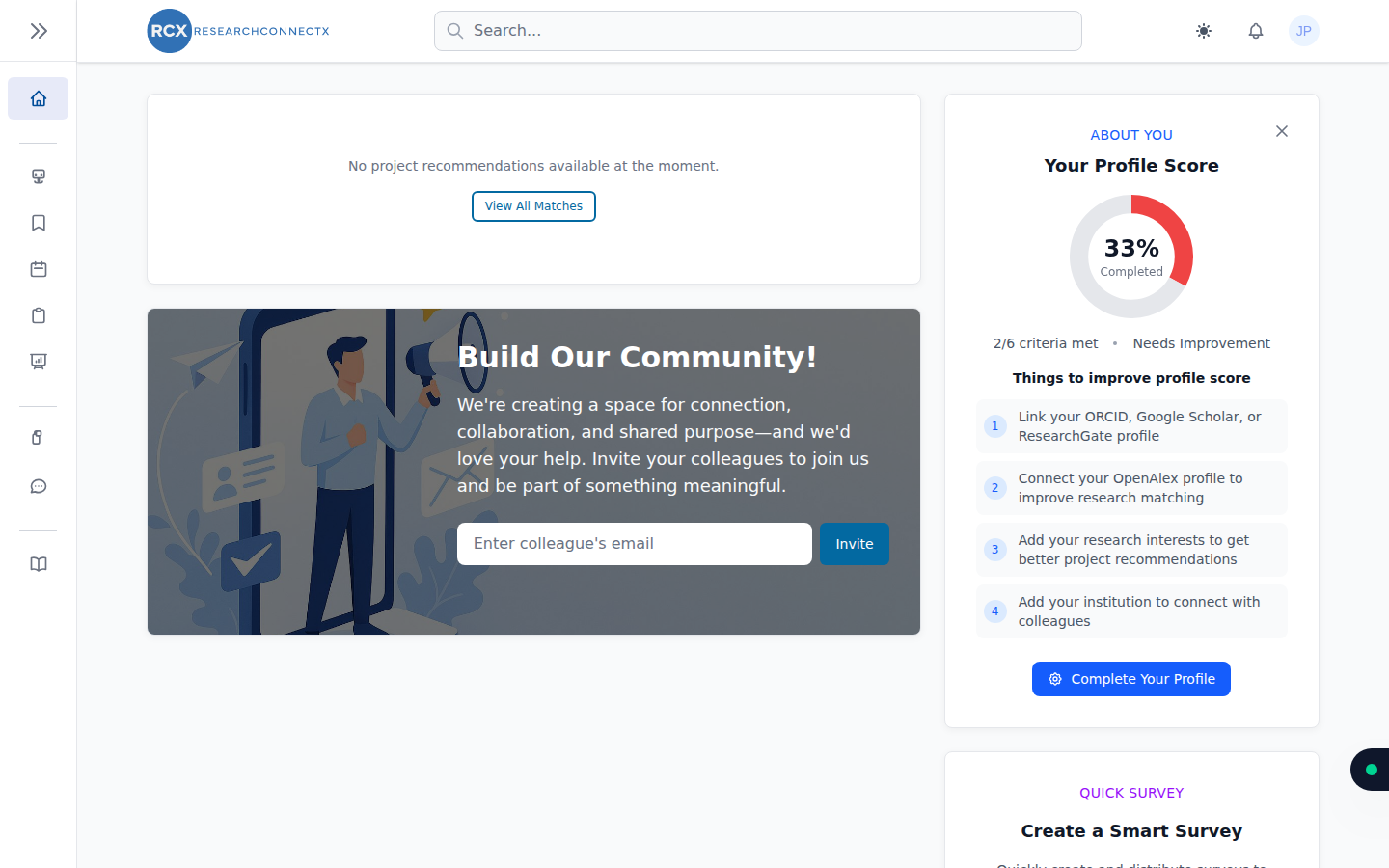
Your dashboard is the first thing you see when you sign in — a snapshot of your profile, your projects and what's new in the community.
The main area
What you see here depends on how new your account is:
- Project recommendations — projects the AI thinks suit you. New accounts may see "No project recommendations available at the moment" until your profile has enough detail; click View All Matches to visit Smart Matches.
- Invite your colleagues — enter a colleague's email address and click Invite to send them a ResearchConnectX invitation. The platform gets better for everyone as your community grows.
- Pending invitations — if someone invites you to a project, it appears here for you to accept or decline.
- Your projects — quick links into projects you own or belong to.
- New joiners — recently joined researchers, with a relevance score and their research interests. Click someone to view their profile.
The "About You" panel
On the right you'll find Your Profile Score — a percentage showing how complete your profile is, along with a checklist of what to improve (for example, linking your ORCID profile or adding research interests).
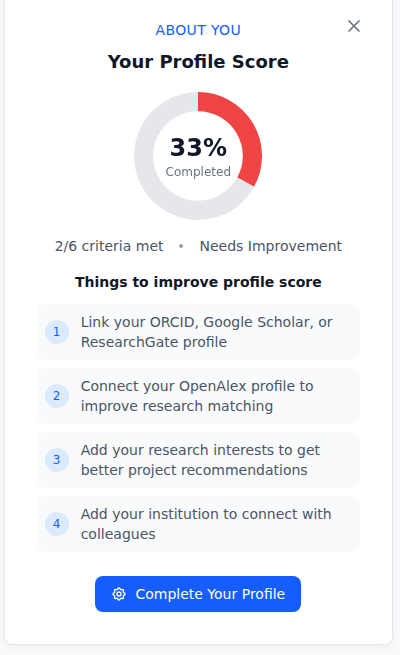
A stronger profile means better AI matches, so it's worth working through the list. Click Complete Your Profile to jump to the relevant setting, and see Improving your profile for a full walkthrough.
Below that you may also see:
- Quick Survey — create a smart survey from ready-made templates in seconds.
- Recommended conference — an AI-picked conference for your field, with options to add it to your calendar or download the organiser's vCard.
Getting around
- Sidebar (left) — the main navigation: Home, Smart Matches, Saved Matches, Calendar, Surveys, Conferences, Projects and Messages, plus Help.
- Search (top) — search across researchers, projects and conferences from anywhere.
- Bell icon (top right) — your notifications, with unread counts.
- Your avatar (top right) — opens your account menu: settings, account security, switching institutions (if you belong to more than one) and signing out.
- Sun/moon icon — switch between light and dark mode.
What to do next
- Work through your profile-score checklist → Improving your profile
- Refresh and review your matches → Smart Matches
- Start something → Create a project or run a survey