
Appearance
Creating your account
Welcome to ResearchConnectX! This guide walks you through creating your account and signing in for the first time. It only takes a couple of minutes.
Sign-up options
You can create your account in two ways:
Option 1: Single sign-on (recommended)
The fastest way to join. On the registration page, choose one of:
- Continue with Google — use your Google account
- Continue with Microsoft — use your Microsoft / institutional account
- Continue with ORCID — use your ORCID iD (great if you want your researcher identity linked from day one)
You'll be redirected to your provider to approve the sign-in, then straight back to ResearchConnectX. No separate password to remember.
Already have an account with a password?
If you sign in with SSO using the same email address as an existing account, ResearchConnectX will ask you to confirm before linking the two — so your profile, projects and matches stay in one place.
Option 2: Email and password
- Open the registration page from the sign-in screen.
- Enter your first name, last name, email address and a password.
- Accept the terms of service and privacy policy.
- Complete the security check and submit.
Verify your email address
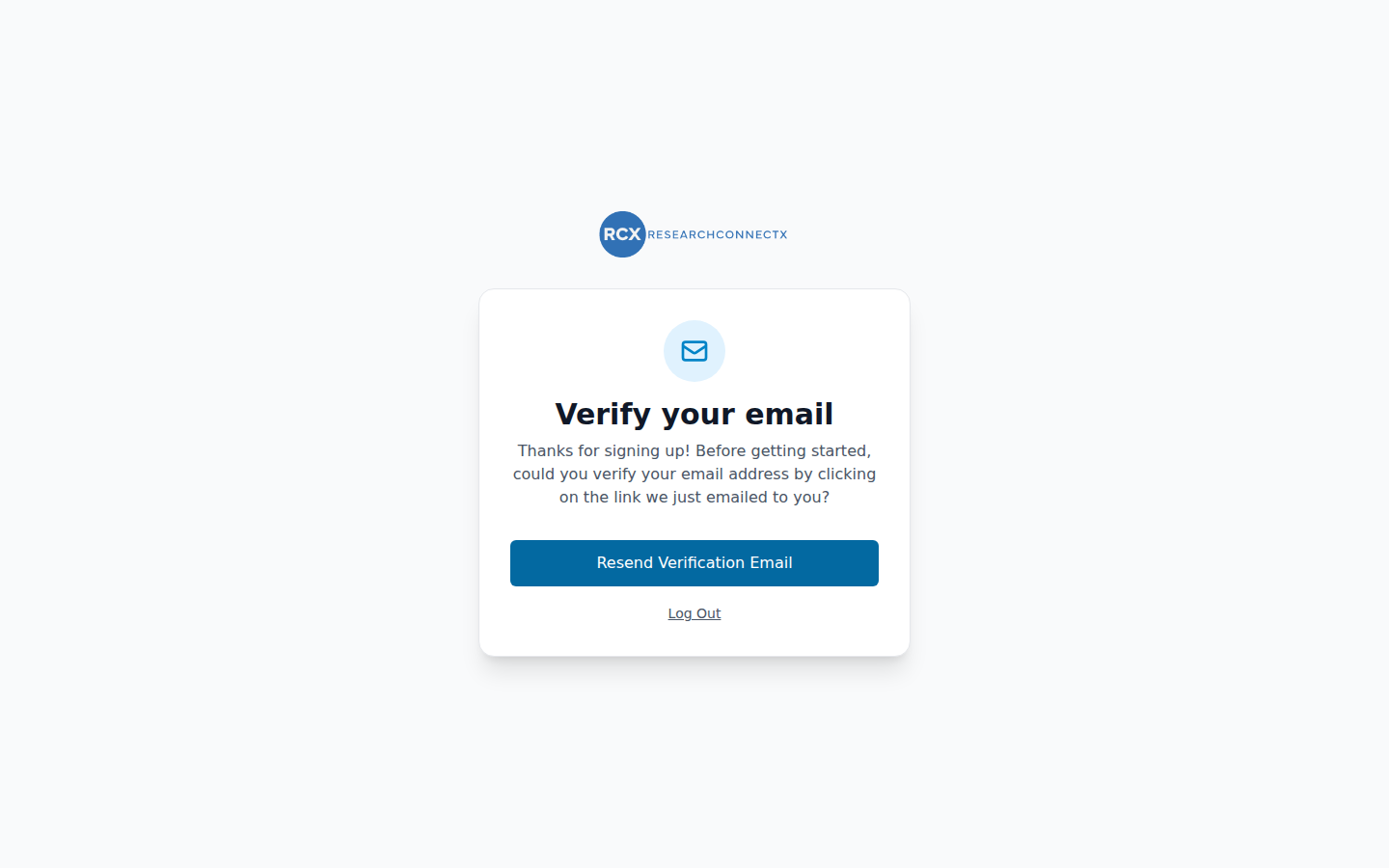
Whichever option you choose, we need to confirm your email address before you can use the platform.
- Check your inbox for a message from ResearchConnectX.
- Click the verification link in the email.
- You'll be signed in and taken to the onboarding wizard.
Didn't get the email?
Check your spam/junk folder first. Still nothing? Click Resend Verification Email on the verification page. If it still doesn't arrive, contact your institution's administrator or RCX support.
Joining via an invitation
If a colleague invited you to a project or shared a join link, sign-up is even simpler:
- Click the invitation link in your email (or the join link you were given).
- The registration page will show the project you're joining, and your email address may be pre-filled for you.
- Complete registration as above — you'll be added to the project once you're in.
Signing back in
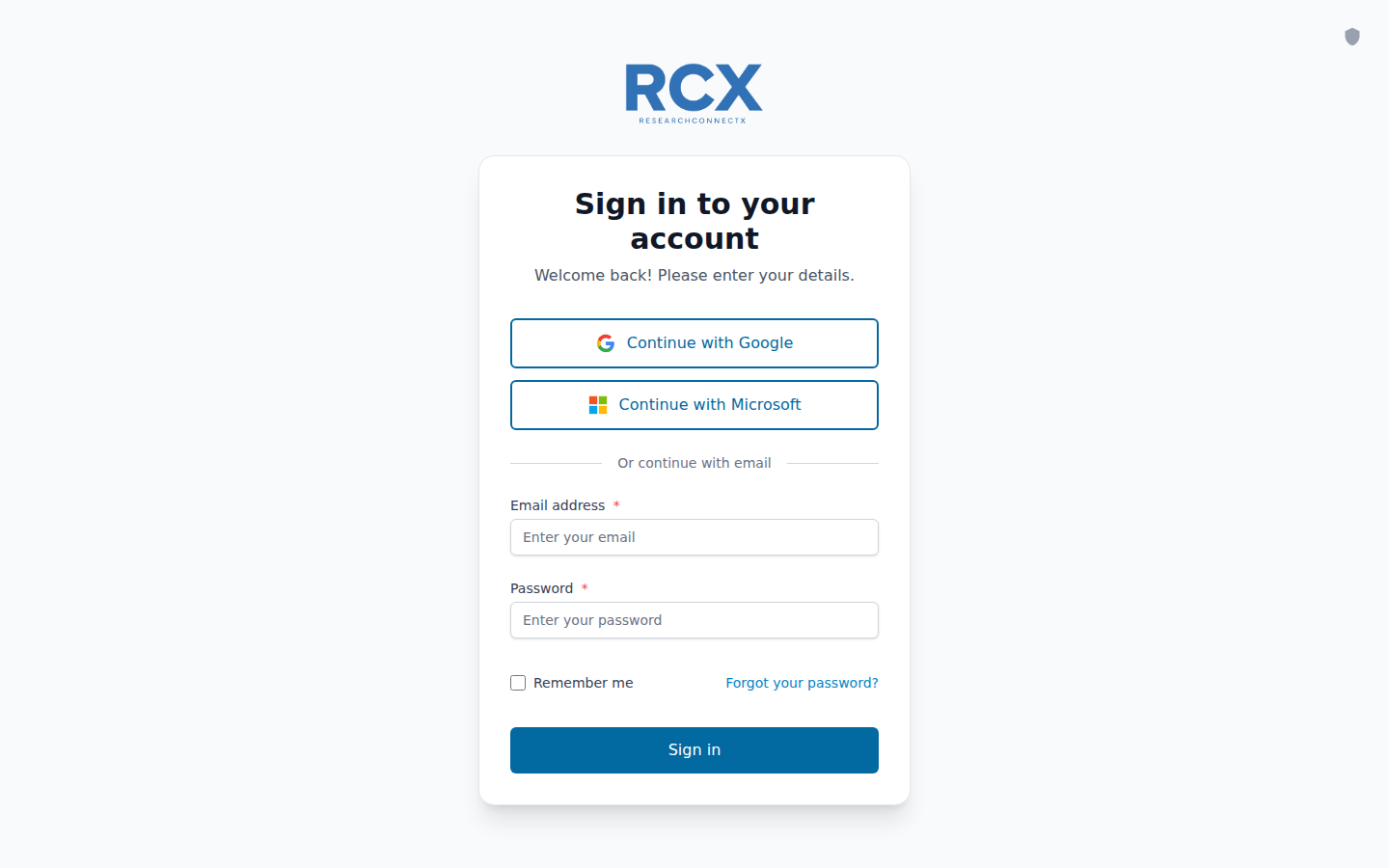
Return to the sign-in page and use the same method you registered with — an SSO button or your email and password. Tick Remember me to stay signed in on that device.
Forgot your password?
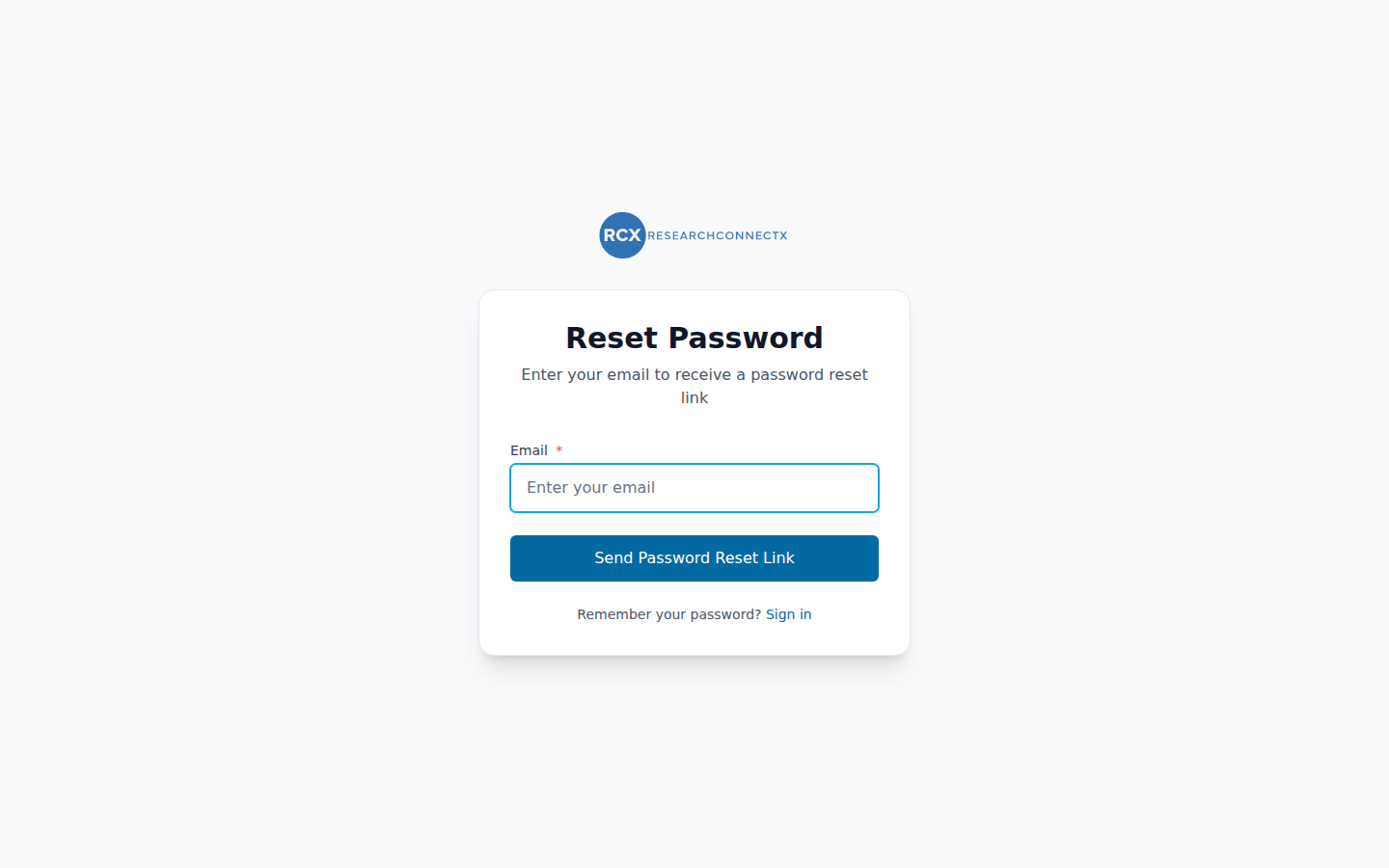
- Click Forgot your password? on the sign-in page.
- Enter your email address and click Send Password Reset Link.
- Click the link in the email and choose a new password.
Signed up with SSO?
SSO accounts don't have a password by default. If you'd like to sign in with email and password as well, you can set one later in Account security.
Next steps
Once you're verified, the onboarding wizard will guide you through setting up your profile — the key to great AI matches.